Step 2: Deploy Cloudflare Workers Payment Gateway
FastTMA adheres to a zero-trust client security model: the client-side WebGL runtime never stores your Telegram Bot Token. All payment invoice links and transaction signatures are mediated securely through an official serverless gateway.
Phase 1: Create Worker in Cloudflare
Log in to the Cloudflare Dashboard. In the left sidebar, navigate to Compute (Workers & Pages).
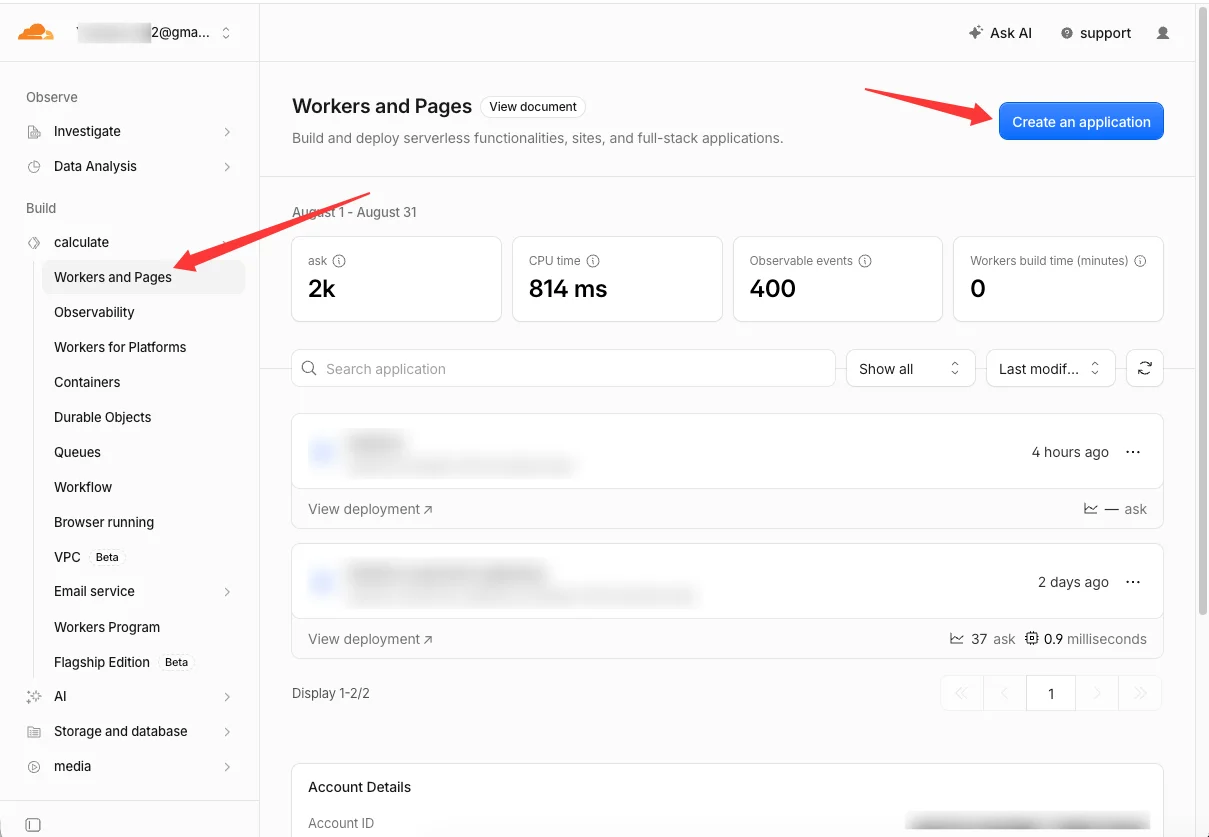
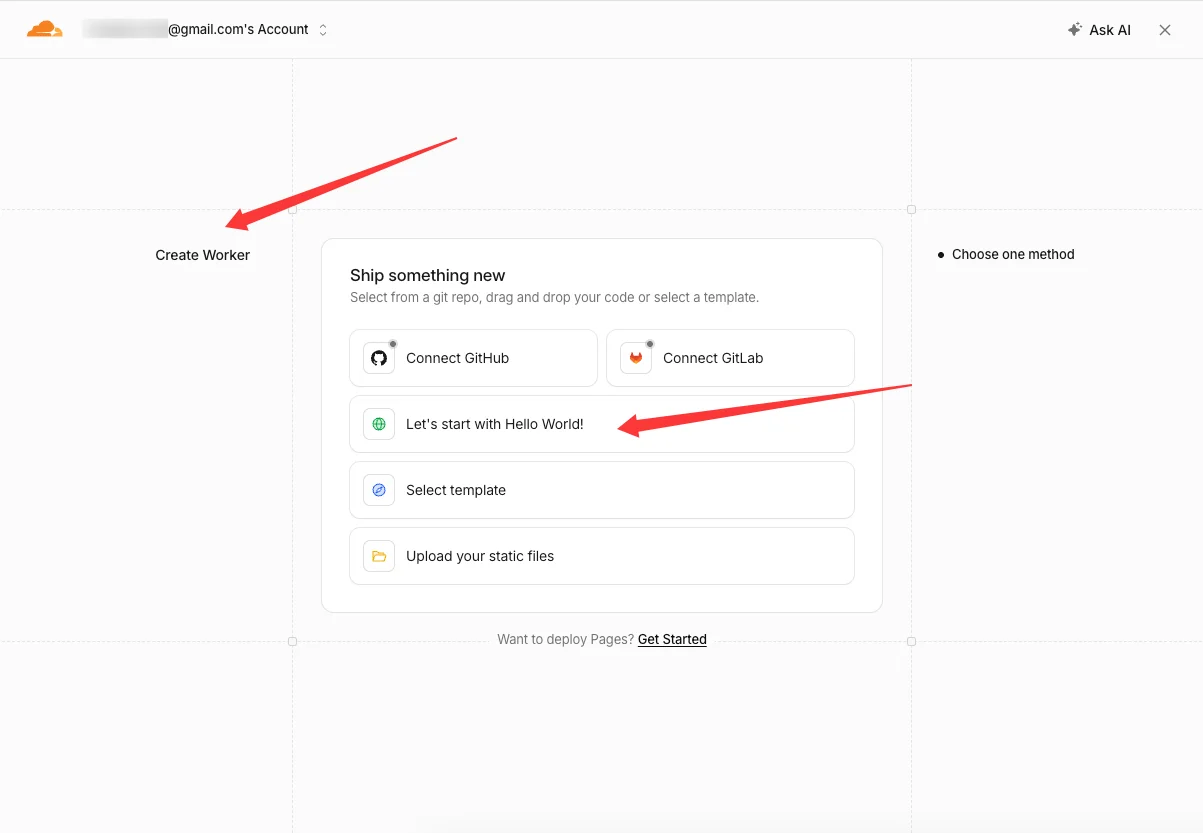
Click Create application, select Create Worker, and choose "Let's start with Hello World!".
Name & Initial Deploy: Enter a name for the Worker (e.g.,
fasttma-payment-gateway), then click Deploy at the bottom-right corner.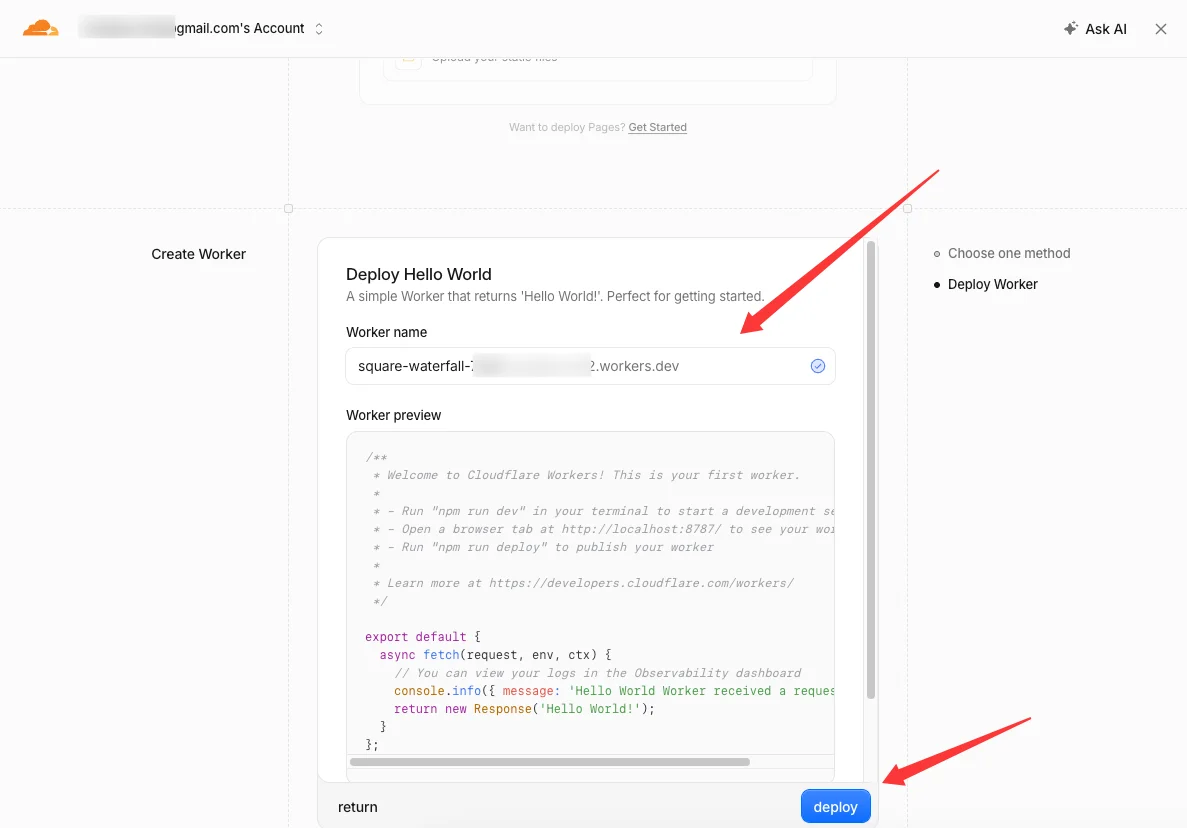
Phase 2: Deploy Gateway Middleware Code
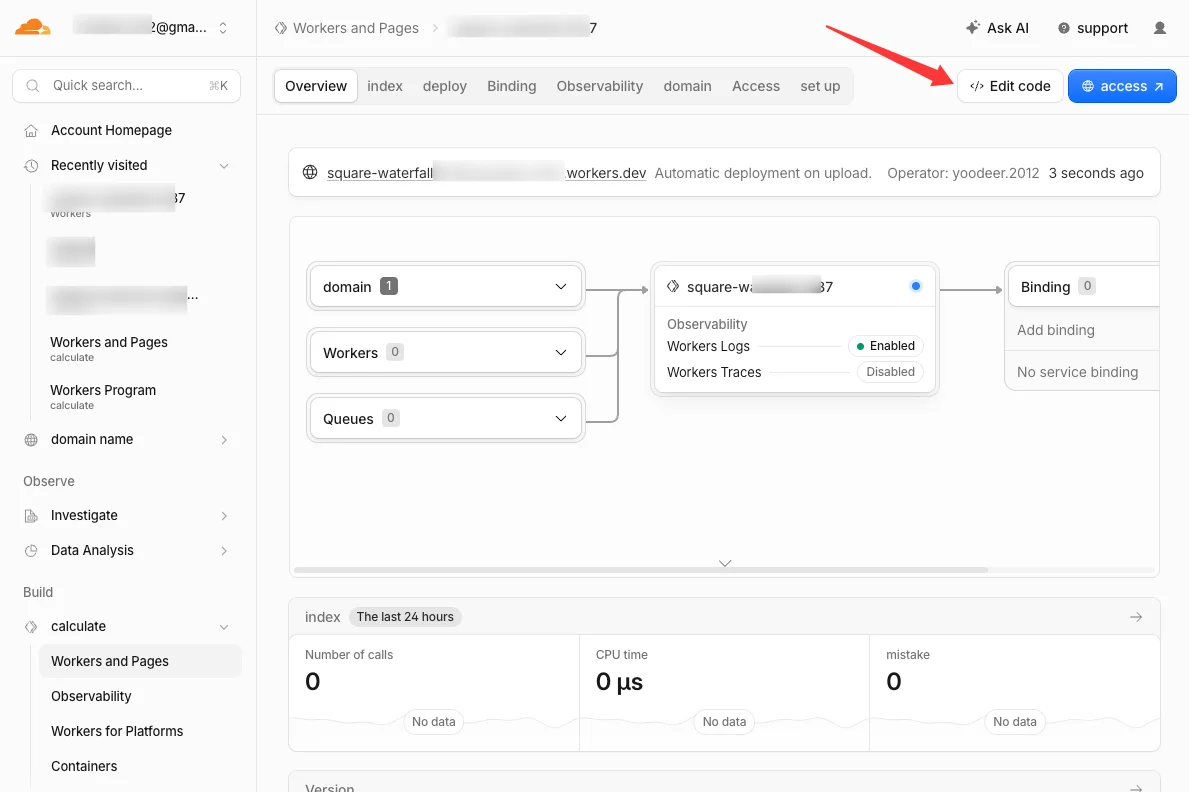
On the Worker details overview page, click Edit code in the top-right corner to open the Cloudflare Web IDE.
In your Unity project, locate and open
Packages/com.fasttma.core/Serverless/cloudflare-worker.js, then copy all source code.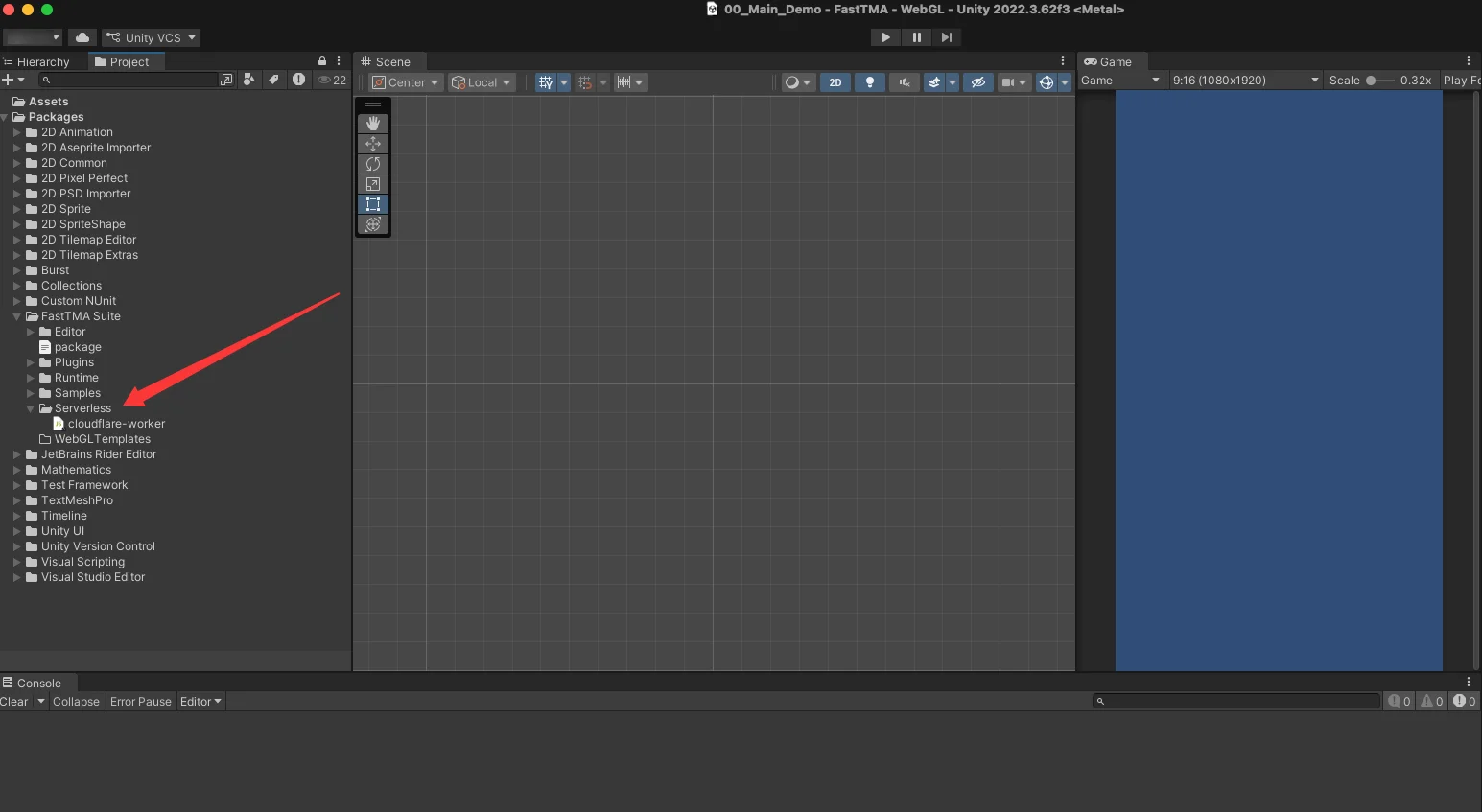
Return to the Cloudflare editor, overwrite all contents of
worker.jswith the copied code, and click Deploy in the top-right corner.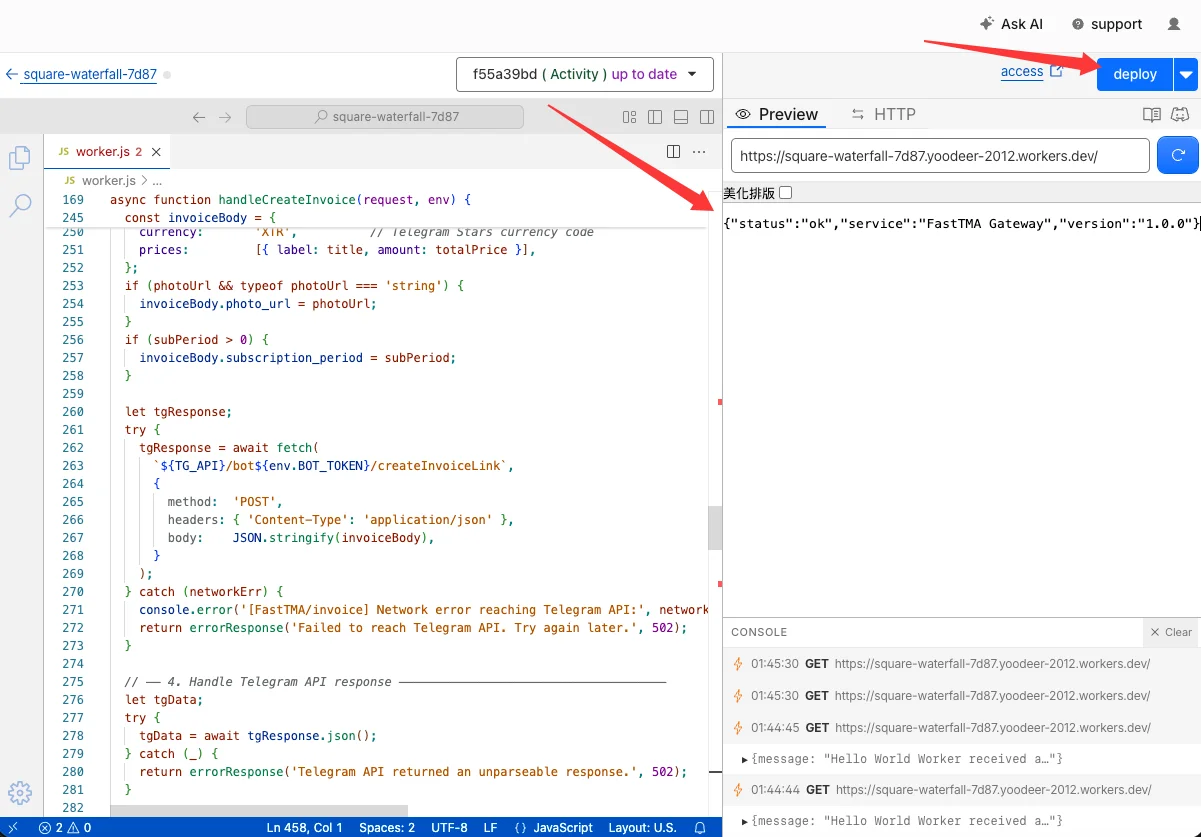
Phase 3: Configure BOT_TOKEN Environment Secret
Return to the Worker management page, select the Settings tab, and click Runtime variables and secrets on the left.
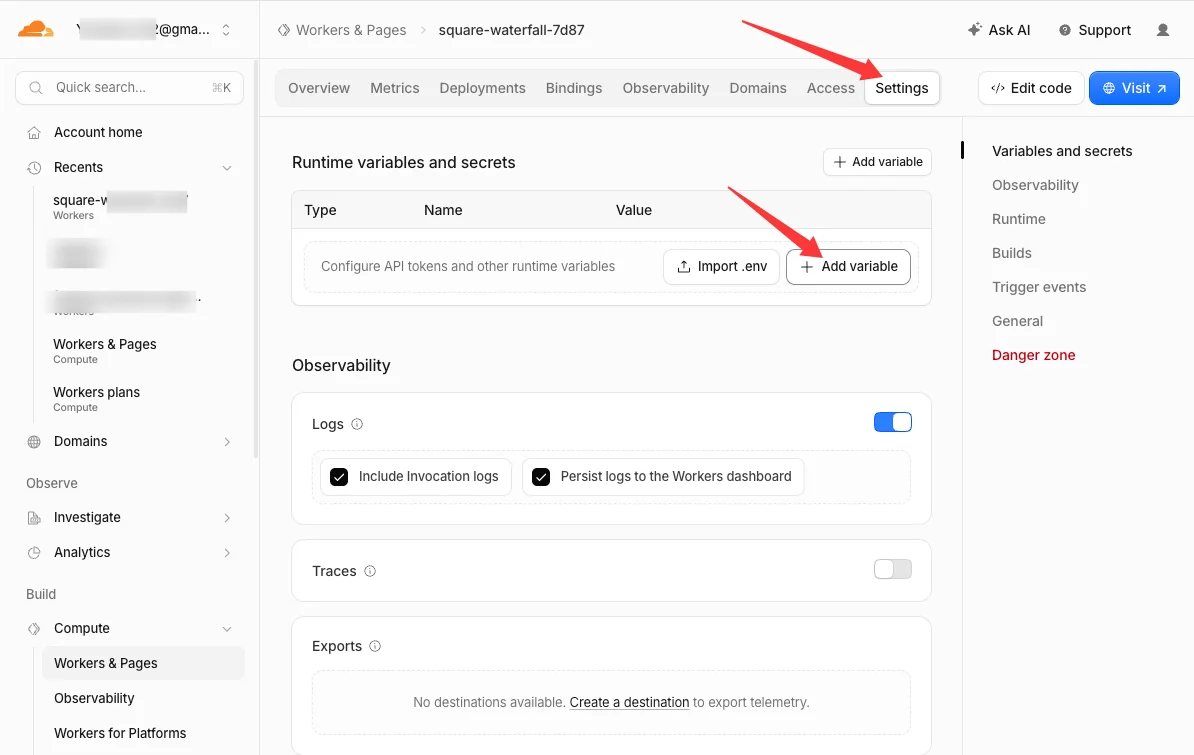
Click Add variable and configure the field:
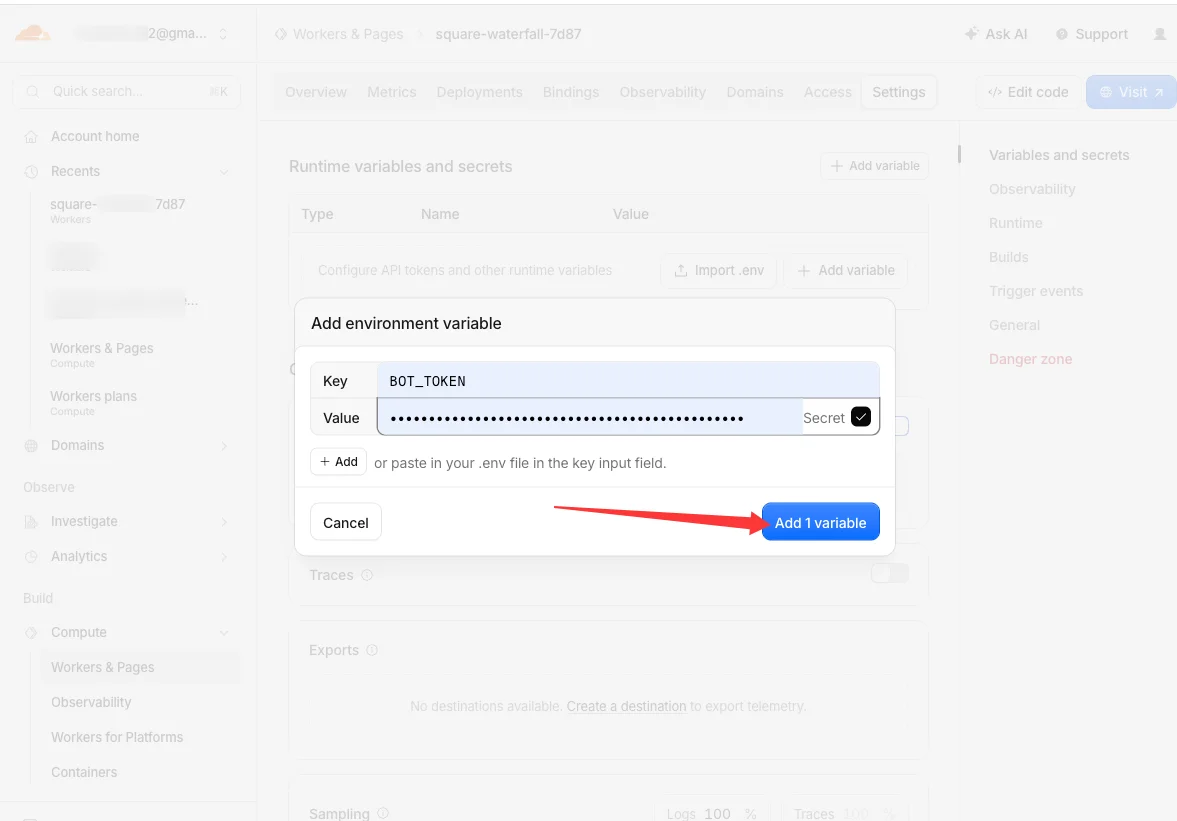
- Key: Enter
BOT_TOKEN(uppercase, exact match). - Value: Paste the Bot API Token obtained from
@BotFatherin Step 1. - Type: Check Secret (encrypts the credential to prevent plain-text exposure).
- Key: Enter
Click Add 1 variable (or Save and Deploy) to commit the configuration.
Phase 4: Unity Configuration & Connectivity Verification
- Copy Gateway Endpoint: On the Worker overview page, copy the public URL (formatted as
https://fasttma-payment-gateway.<subdomain>.workers.dev).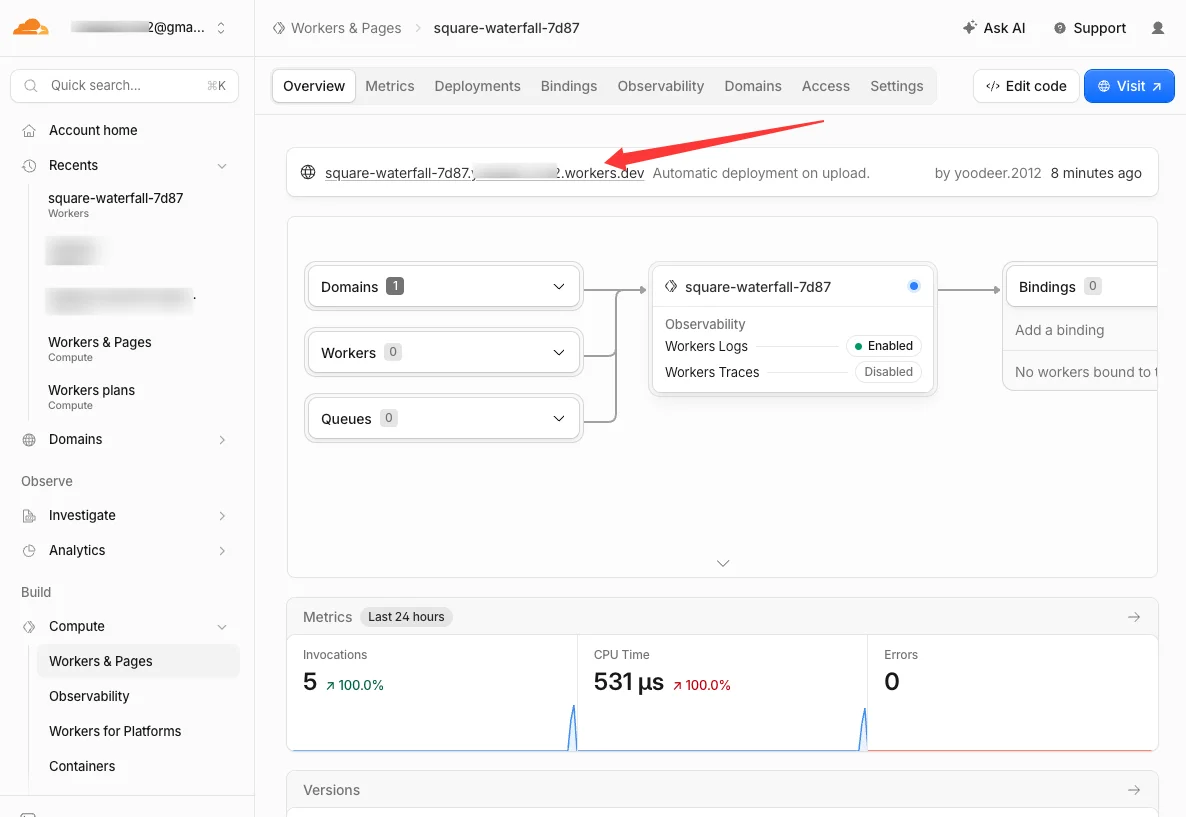
Trailing Slash Rule
Do NOT include a trailing slash (/) at the end of the URL.
Open Unity Settings Panel: In the Unity top menu bar, select Edit $\rightarrow$ Project Settings $\rightarrow$ FastTMA (or Tools $\rightarrow$ FastTMA $\rightarrow$ Settings).
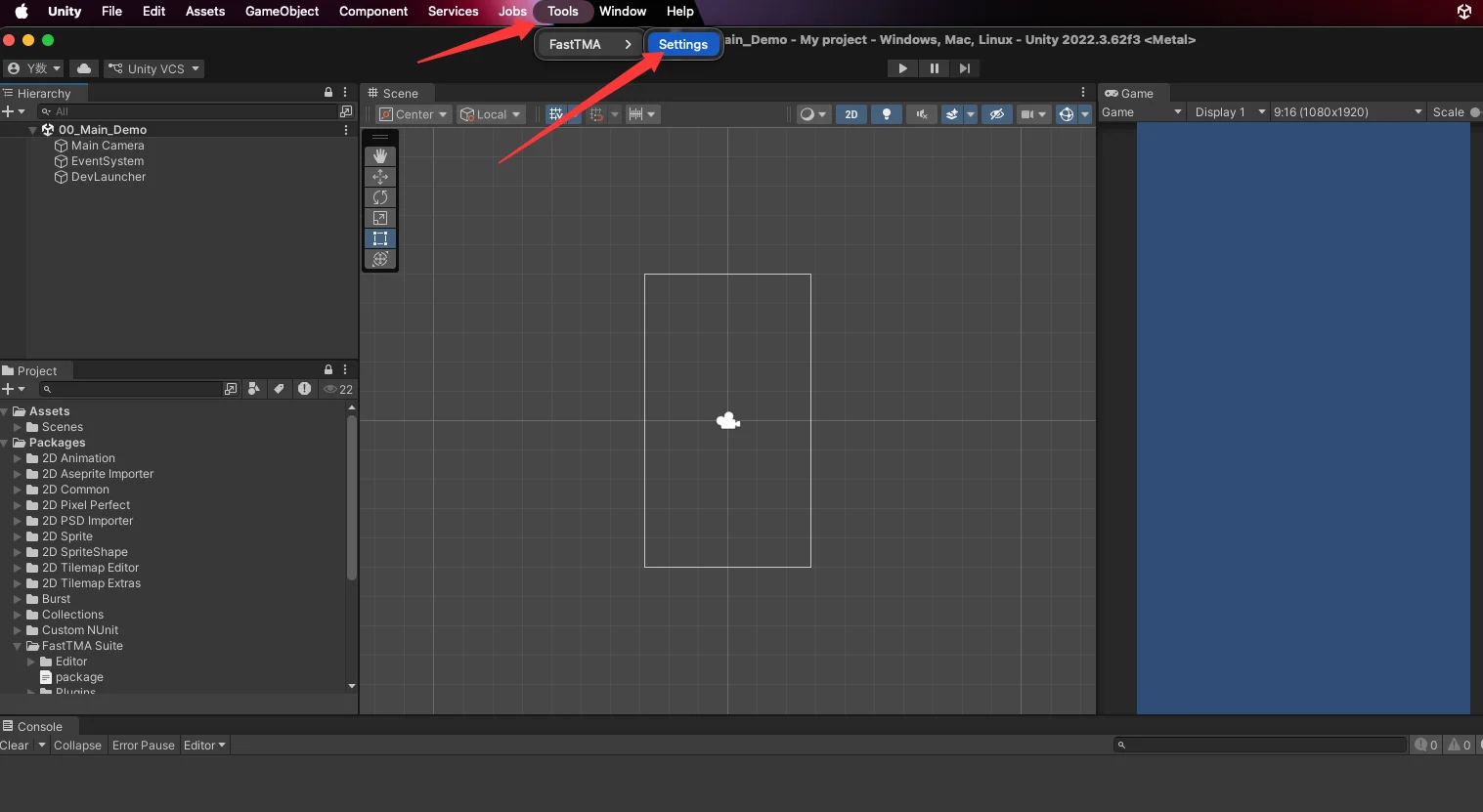
Asset Self-Healing: If Asset Status displays a red Error indicating a missing asset, click Create / Rebuild Settings Asset to generate it instantly.
Assign Gateway URL: Paste the Worker HTTPS URL into the Telegram Pay Url field (the address must begin with
https://).Perform Connectivity Test: Click Apply on the right side. Unity will send a 2-second hard-timeout preflight probe to the gateway.
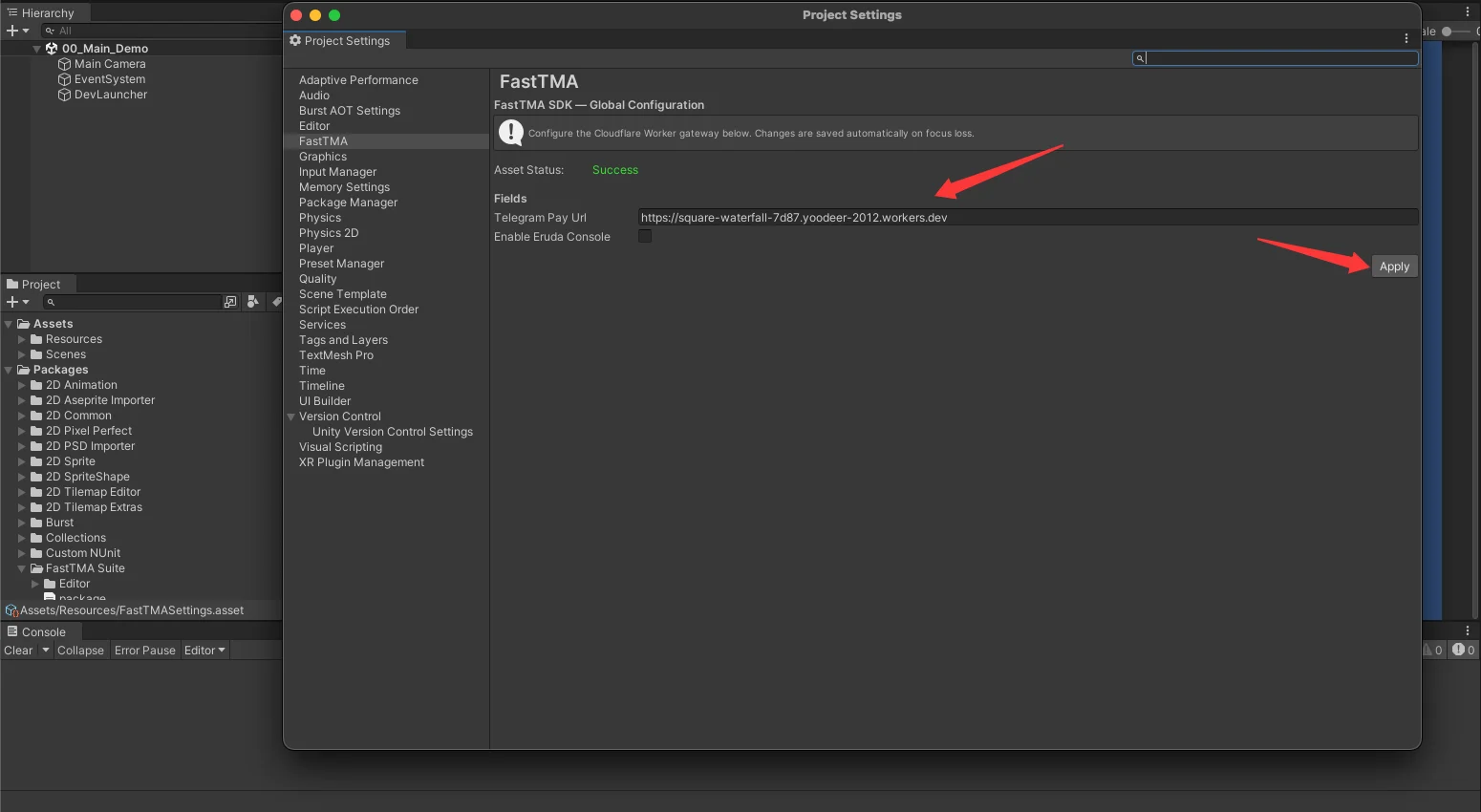
Once the dialog confirms:
✅ Success! The Telegram Pay Gateway is online and reachable.The Asset Status indicator turns green (Success), verifying the payment infrastructure is online.